Tendonitis from typing and mouse use: how to take the load off
Tendonitis from typing or mouse use? What strains your hands at the computer, what an ergonomic mouse can't do, and how to replace typing with dictation.
When your keyboard and mouse hurt, the main thing is to avoid the motions that caused the pain, or to make them less often. An ergonomic mouse changes your grip, breaks interrupt the strain, and much of your typing can be replaced by dictation. Your voice produces the text, and your fingers only type the corrections.
First, because this is about your health: this guide is not medical advice. It shows how to work at the computer so your hands and wrists have less to do. Whether and how much you should work right now is a question for your doctor.
What strains your hands at the computer
According to MedlinePlus, the U.S. National Library of Medicine’s health encyclopedia, tendinitis can result from injury or overuse, and it lists avoiding repetitive motions and overuse among the ways to prevent it. Harvard Health Publishing says the repetitive movement of your fingers on a keyboard or mouse can irritate underlying conditions such as tendinitis.
At a desk, two kinds of strain add up:
- The keyboard: every letter is a keystroke. A 150-word email is roughly a thousand keystrokes (letters, spaces, punctuation), a report many times that.
- The mouse: clicking, dragging, scrolling, often for hours with the same hand in the same position.
MedlinePlus lists resting the tendon, sometimes with a splint or removable brace, heat or cold, and anti-inflammatory pain relievers as typical treatment, and notes that symptoms improve with treatment and rest. If overuse caused the problem, it adds, you may need to change your work habits so it does not come back. That is where the rest of this guide comes in.
What an ergonomic mouse changes, and what it doesn’t
Harvard Health suggests a comfortable mouse and gel-filled wrist rests, and recommends checking with your doctor before you try these strategies. An occupational therapist can tell you better than any online review which shape fits your hand.
The limit: a different mouse or keyboard changes how you click and type, not how often. Every letter still has to be typed. If you want to cut the number of keystrokes themselves, you can dictate part of your text instead of typing it. That does not replace ergonomic changes or treatment; it comes on top of them.
Replace typing with dictation: Celerando
Celerando is a Windows app that turns speech into text on your PC and inserts it wherever your cursor is: Outlook, Word, your browser, Teams, Slack, editors or forms. Click into the text field, press the dictation hotkey, speak, press it again. No copying, no pasting, no switching windows.
What matters most for sore hands:
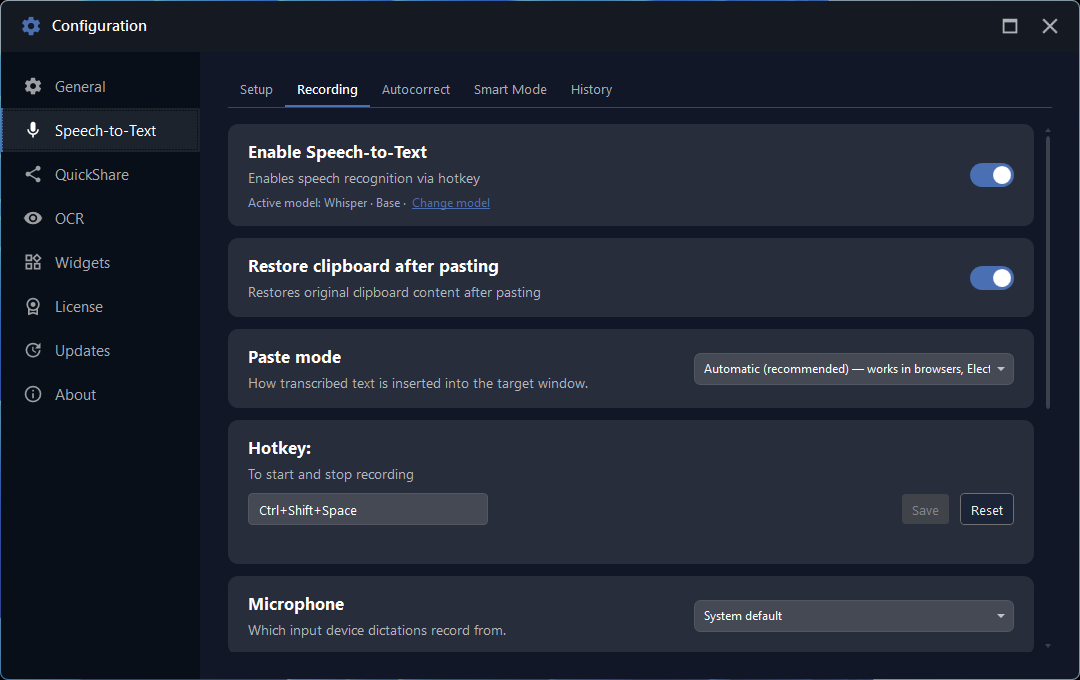
- Two short key presses per paragraph instead of hundreds of keystrokes. The default hotkey is Ctrl+Shift+Space. You can change it in the configuration, for example to a combination you can reach with your less affected hand.
- Fewer corrections: in the Personal Dictionary you add names and technical terms once, together with the variants the recognition gets wrong (Pro and up). Every correction you skip is typing you skip.
- Text snippets: greetings, addresses and standard replies sit as a list on your dashboard; one click copies the text to the clipboard. The text templates tile is included in Free.
- Smart Modes (Business): a local language model cleans up dictated text: removes filler words, adds punctuation and can rewrite it as an email.
What each edition can do for dictation
- Free (no cost, no time limit): Whisper Small or Base in your system language, up to 30 seconds per recording. Enough if you dictate paragraph by paragraph.
- Pro (€36 one-time): 26 well-recognized languages, unlimited recording length, Personal Dictionary, rule-based post-processing.
- Business (€63 one-time): adds Parakeet as a second speech recognition model, push-to-talk, auto mode, streaming (the text appears while you speak) and Smart Modes.
No subscription. You can try every feature free for 14 days; after that Celerando keeps running as Free. The full comparison is on Editions.
What Celerando can’t do: control your PC by voice. Clicking, switching windows or opening menus still takes the mouse and keyboard. Celerando replaces typing text, not the mouse.
Step by step: set up dictation
- Download and install Celerando. The installer is signed and needs neither admin rights nor an account.
- Turn on voice input. Celerando downloads the recommended Whisper Small model once (466 MB). After that it recognizes your speech without an internet connection.
- Check the hotkey. In the configuration under Speech-to-Text › Recording › Hotkey you choose which key combination starts and stops a recording (see the image below). Pick one you can reach without straining.
- Choose the hotkey mode. The default is toggle: press once to start, once to stop. Business adds push-to-talk (hold the key while you speak) and auto (short tap or long hold). Keep in mind that holding a key for a long time is also work for your fingers. Toggle needs just two short presses.
- Click into the text field, press the hotkey, speak, press the hotkey. The text lands where your cursor was.
- Work paragraph by paragraph. Dictate a paragraph, read it, fix it, then the next. In Free that fits the 30-second limit.
Which microphone works well and how to dictate clearly is covered in the guide Speech to text on Windows 11.
Take the load off the mouse, too
Dictation takes work away from the keyboard. For the mouse there are other levers:
- An ergonomic mouse, as described above, ideally after professional advice.
- Shorter mouse trips: Alt+Q opens the Celerando dashboard right at your mouse position, on a second monitor too. No trip to the Start menu, and the built-in search finds your tiles.
- Fewer clicks: a multistart tile launches several programs and web apps at once. How to set up your workspace that way is shown on Start your workspace.
Plan your breaks
Harvard Health recommends scheduled breaks before you feel the need to stop, for example five minutes after 45 minutes of activity. What suits you is best settled with your doctor or therapist.
A timer keeps you from forgetting. Set Celerando’s Pomodoro tile to 25 minutes, or any value from 5 to 120, and work on one thing until it rings. The tile is included in Free.
What helps with what
| Measure | Takes load off | Limit |
|---|---|---|
| Ergonomic mouse | hand and wrist posture while clicking | it doesn’t reduce clicks; the keyboard stays |
| Breaks and switching tasks | both hands | the work itself doesn’t shrink |
| Dictation with Celerando | the keyboard: text by voice instead of keystrokes | you still type corrections; the mouse stays; Free up to 30 seconds per recording |
| Text snippets (text templates tile) | recurring text | only for text you repeat |
| Personal Dictionary (Pro and up) | corrections of names and technical terms | needs to be set up once |
Windows has its own free voice typing with Win+H. It recognizes your speech on Microsoft’s servers, though, and always needs an internet connection for that. How it works and where it falls short is covered in the guide Voice typing in Windows 11.
When dictation doesn’t work
| Problem | What helps |
|---|---|
| No text appears after the hotkey | Click into the text field first so the cursor is there. In Remote Desktop sessions and terminals, set Speech-to-Text › Recording › Paste mode to Character simulation. |
| The recording stops | In Free a recording ends after 30 seconds. Dictate in shorter pieces, or use Pro with no limit. |
| Names and technical terms come out wrong | Add them to the Personal Dictionary, including the wrong variants (Pro and up). |
| Recognition is inaccurate | Quiet room, a headset instead of the laptop microphone, speak clearly. More in the guide Speech to text on Windows 11. |
Frequently asked questions
Can I keep working at a computer with tendonitis?
That’s a decision for you and your doctor. MedlinePlus names rest as part of the treatment and says you may need to change your work habits if overuse caused the problem.
What kind of mouse helps with tendonitis?
Harvard Health suggests a comfortable mouse. Which shape suits you is best decided with an occupational therapist. A mouse doesn’t reduce the number of keystrokes, though.
Does dictation help with tendonitis from typing?
Dictation doesn’t heal anything. It does replace a large share of your keystrokes with speech, and repetitive keystrokes are exactly the kind of motion MedlinePlus advises avoiding. How much it helps depends on how much of your work is writing.
Can Celerando replace my mouse?
No. Celerando turns speech into text. It doesn’t offer voice control of the PC, such as clicking or managing windows.
How much does Celerando cost?
The Free edition costs nothing and has no time limit: dictation in your system language, up to 30 seconds per recording. Pro is €36 and Business €63, both one-time payments with no subscription. Every feature can be tried free for 14 days.
Do I need an internet connection to dictate?
Only once, to download the speech model. After that, recognition runs offline on your PC. Celerando contacts the internet only for the downloads you choose (models, additional languages, the optional CUDA runtime), the update check, license activation including the query of occupied seats, a one-time installation ping on the very first launch, and addresses you enter yourself (web app tiles load the site’s icon, the connections tile checks your servers). Recordings and text are never part of it.
Sources
As of October 25, 2026.
- MedlinePlus (U.S. National Library of Medicine): Tendinitis (causes, treatment, prevention, work habits; reviewed July 23, 2024)
- Harvard Health Publishing: Typing and tapping despite hand pain (repetitive motions, breaks, helpful tools; January 17, 2025)
More guides
- ChatGPT dictation: use voice to text on PC, fix it, alternativeHow to dictate into ChatGPT with the microphone icon, what to check when it stops working, and how to speak prompts on your PC without uploading the recording.
- How to dictate in Word, even without Microsoft 365Dictate button missing or grayed out in Word? What Word's dictation needs, what to do with Office 2016/2019, and how to dictate offline without a subscription.
- How to Use Voice Typing in Google Docs, and Fix ItStart voice typing in Google Docs, fix a missing menu or a silent microphone, and dictate into Docs from any browser with speech recognized on your PC.