Recent Files in Windows 11 and 10: Find, Hide and Clear Them
Where Windows shows your recently opened files: File Explorer, Start, Jump Lists and Office. Plus how to hide or clear the list and keep files pinned.
Windows shows your recently opened files in four places: on the File Explorer Home page (Windows 11)
or in Quick access (Windows 10), in the Start menu of Windows 11 under “Recommended”, in the
Jump List you get by right-clicking a program on the taskbar, and in Word, Excel and PowerPoint under
File › Open. The complete folder of shortcuts to all recently used items is
%APPDATA%\Microsoft\Windows\Recent.
That helps when you are looking for a file from yesterday. It helps less when you need the same ten files every week: these lists change with every file you open, and each one lives in a different window. This guide covers every place, what to do when the list is empty, how to hide or clear it, and how to give the files you keep coming back to a fixed spot.
Where Windows shows recent files, and where it falls short
| Place | What you see there | Limit |
|---|---|---|
| File Explorer Home (Windows 11) or Quick access (Windows 10) | recently used files and frequently used folders | open File Explorer first; the list mixes all programs |
| Start menu, “Recommended” section (Windows 11) | recently added and frequently used apps, plus recently opened files | only a few entries visible, apps and files mixed |
| Jump List (right-click a program on the taskbar) | recently opened files of that program | one program at a time |
| Office: File › Open | recent documents of that Office app | Word shows only Word files, Excel only Excel files |
Folder %APPDATA%\Microsoft\Windows\Recent | shortcuts to recently used items | one long, unsorted list without groups |
All five share the same weakness: they are fleeting. What you opened three weeks ago has slipped down or dropped off, because other files have been added since. And they are usually hidden: to see them, you first open File Explorer, the Start menu or the program.
With Celerando: recent files on top of every window
Celerando is a tile dashboard for Windows 10 and 11. An optional panel shows your recently opened files, sorted by recency. You open the dashboard with Alt+Q at the mouse position, whatever program you are in. You don’t need to open File Explorer or the Start menu, and on multiple monitors it appears where your mouse is.
For the files you don’t want to hunt for in a changing list every time, there is a fixed place:
- Right-click a file in File Explorer › “Pin to Celerando”. The file becomes a tile. You can also drag and drop it onto the tile surface.
- Tile groups you name yourself, for example “Project A” or “Month-end close”. Besides files they hold programs, folders and websites.
- Built-in search across all tiles.
- Multistart tiles open several programs and web apps at once.
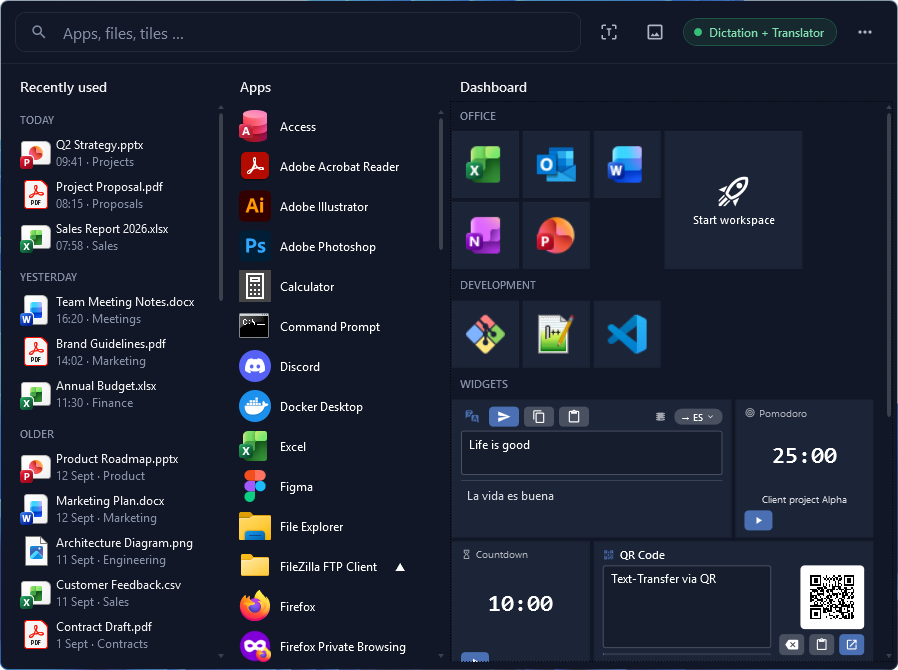
Celerando doesn’t replace the Windows lists, it adds to them: the panel shows what you opened last, the tiles keep what you need again and again.
Editions: The dashboard with Alt+Q, Explorer integration and the recently used files panel is included in Free, the free edition, with up to 5 tiles (10 with email registration, Free+). Pro (€36 one-time, no subscription) removes the limit. You can try every feature free for 14 days; the overview is under Editions. Celerando installs into your user profile and needs no admin rights.
Step by step: find your recent files
In File Explorer
Open File Explorer with Windows+E. In Windows 11 you land on Home, which used to be called Quick access; your recently used files are listed there. In Windows 10 you find them in Quick access under recent files. Double-click to open a file.
In the Start menu (Windows 11)
Open Start. In the “Recommended” section, Windows 11 shows recently added and frequently used apps, plus recently opened files. If the files are missing, the setting for recently opened items is off (see troubleshooting).
In the taskbar Jump List
Right-click a program’s icon on the taskbar, for example Word or Notepad. The Jump List shows that program’s recently opened files. Microsoft describes it as a list that lets you quickly perform tasks like opening a recent file.
In Word, Excel and PowerPoint
Select File › Open. At the top is that app’s list of recent documents. How many entries it shows is set under File › Options › Advanced, in the Display section, at “Show this number of Recent Documents”. In Microsoft 365 you keep a file permanently with “Add to Favorites”; the “Recent” list, by contrast, fills itself.
In the Recent Items folder
Type %APPDATA%\Microsoft\Windows\Recent into the File Explorer address bar and press
Enter. Microsoft lists this folder as the known system folder “Recent Items”. It holds
shortcuts, not the files themselves. Sort by the “Date modified” column to see the newest first.
Hide or clear the list
If you share your screen or present, you may not want the list on display:
- Start, Jump Lists and File Explorer: Settings › Personalization › Start, then turn off “Show recently opened items in Start, Jump Lists, and File Explorer”. The name varies slightly by Windows version; Microsoft’s taskbar page, for example, calls it “Show recently opened items in Jump Lists on Start or the taskbar”.
- File Explorer only: In the folder options (Windows 11: See more (…) › Options in the command bar; Windows 10: the View tab › Options), clear the check boxes for recently used files and frequently used folders in the Privacy section and select Apply.
- A single file in File Explorer: right-click the entry and remove it from the list; in Windows 10 the command is “Remove from Quick access”.
- Office: Under File › Open, right-click a file › “Remove from list” for one entry, or “Clear unpinned Documents” for all unpinned ones, then Yes. To hide the list entirely, set “Show this number of Recent Documents” to zero.
Hiding and clearing only affect the lists. The files stay where they are.
Troubleshooting
| What happens | What helps |
|---|---|
| File Explorer shows no recent files | In the folder options (Windows 11: See more › Options), under “Privacy”, check recently used files again and select “Apply” |
| Start shows no files under “Recommended” | Settings › Personalization › Start › turn on the setting for recently opened items |
| A program’s Jump List is empty | The same setting under Settings › Personalization › Start also controls Jump Lists |
| Word shows no recent documents | File › Options › Advanced › “Display”: the number is probably set to zero |
| A file appears in the list but won’t open | It was moved, renamed or deleted; the list only keeps the old path |
| The file you want has dropped off the list | Keep files you use regularly in a fixed place: in Windows 11 with “Add to Favorites” in File Explorer, in Windows 10 by pinning their folder to Quick access, as a Favorite in Office, as a tile in Celerando |
Celerando and Windows compared
| Celerando dashboard | Windows (File Explorer, Start, Jump List) | |
|---|---|---|
| Recently opened files | panel, sorted by recency | File Explorer Home, Start “Recommended”, Jump Lists |
| Reachable with windows open | yes, with Alt+Q at the mouse position | open File Explorer or Start, Jump List via right-click |
| Keep files permanently | as tiles in your own named groups | Windows 11: Favorites on File Explorer Home; Windows 10: pin only the folder to Quick access |
| Programs, folders and websites too | yes, as tiles, several at once via multistart | pin programs and folders, websites as shortcuts |
| Search | built-in search across all tiles | Windows search |
| Number | Free up to 5 tiles (Free+ 10), unlimited from Pro | unlimited |
| Price | Free at no cost, Pro €36 one-time | included in Windows |
As of November 2026. If you only occasionally look for yesterday’s file, File Explorer Home is enough. Celerando pays off when you need the same files, folders and programs every day and want to reach them without opening another window first.
Tools that list every recently changed file on a drive search by date modified, not by when you opened a file. They also find files a program wrote in the background, and they miss a file you only read.
Frequently asked questions
How do I see recently opened files in Windows 11?
Open File Explorer with Windows+E; Home lists your recently used files. The Start menu also shows them under “Recommended”, and right-clicking a program on the taskbar shows that program’s files.
Where does Windows store recent files?
Windows keeps shortcuts in the “Recent Items” folder at %APPDATA%\Microsoft\Windows\Recent. The files
themselves stay in their folders.
Can I see which files someone else opened on my PC?
The lists are per user account. If someone worked in your account, their files appear in your lists unless they hid or cleared them. The lists are not a complete activity log.
Does clearing the list delete files?
No. “Clear unpinned Documents” in Office, removing an entry in File Explorer and the setting in Settings only affect the list. The files remain.
How do I keep a file within reach for good?
In Windows 11, right-click it in File Explorer and choose “Add to Favorites”; it then appears under “Favorites” on Home. In Windows 10, Quick access pins folders only, so pin the file’s folder. In Microsoft 365, add it to Favorites. In Celerando, “Pin to Celerando” turns it into a tile you can reach on top of every window with Alt+Q, together with programs, folders and websites. How to clear your desktop at the same time is in the guide How to organize desktop icons; websites as tiles are covered in Save a website to your desktop.
Does Celerando go online for this?
No. The dashboard and the panel work on the PC. Celerando contacts the internet only for the download of each model and additional language you select, the optional CUDA runtime, the update check, license activation including the query of occupied seats, a one-time installation ping on the very first launch and addresses you enter yourself (web app tiles load the site’s icon, the connections tile checks your servers).
Sources
- Microsoft: File Explorer in Windows, sections Home/Quick access and Privacy (accessed November 14, 2026)
- Microsoft: Windows 11 Insider Preview Build 22593, Home, Quick access and Favorites in File Explorer (accessed November 14, 2026)
- Microsoft: Customize the Windows Start Menu, “Recommendations” (accessed November 14, 2026)
- Microsoft: Make it easier to focus on tasks, recently opened items setting (accessed November 14, 2026)
- Microsoft: Customize the Taskbar in Windows, Jump Lists (accessed November 14, 2026)
- Microsoft: Customize the list of recently used files in Office apps (accessed November 14, 2026)
- Microsoft Learn: KNOWNFOLDERID, entry FOLDERID_Recent (accessed November 14, 2026)
More guides
- How to Ping an IP Address on Windows: Ping Test and Continuous PingRun a ping test in Command Prompt, start a continuous ping with ping -t, and learn what Request timed out and Destination host unreachable mean.
- How to get the old right-click menu back in Windows 11Restore the full Windows 10 context menu in Windows 11: once with a shortcut, permanently with a registry entry or with a switch in Celerando.
- How to organize desktop icons in Windows and keep them tidySort, arrange and hide desktop icons in Windows 10 and 11, move files off the desktop, and when a tile dashboard works better than the desktop.